

How to Use SubNow
Step‑by‑step guide for fair, stress‑free substitution management.
Create Your Team
- Tap + on the Home screen.
- Choose your sport, game format, duration, and breaks (halves or quarters).
- If your format isn’t available, use Contact Us.
- Add your players
- Player names are limited to 8 characters.
Set Up Your Line-Up
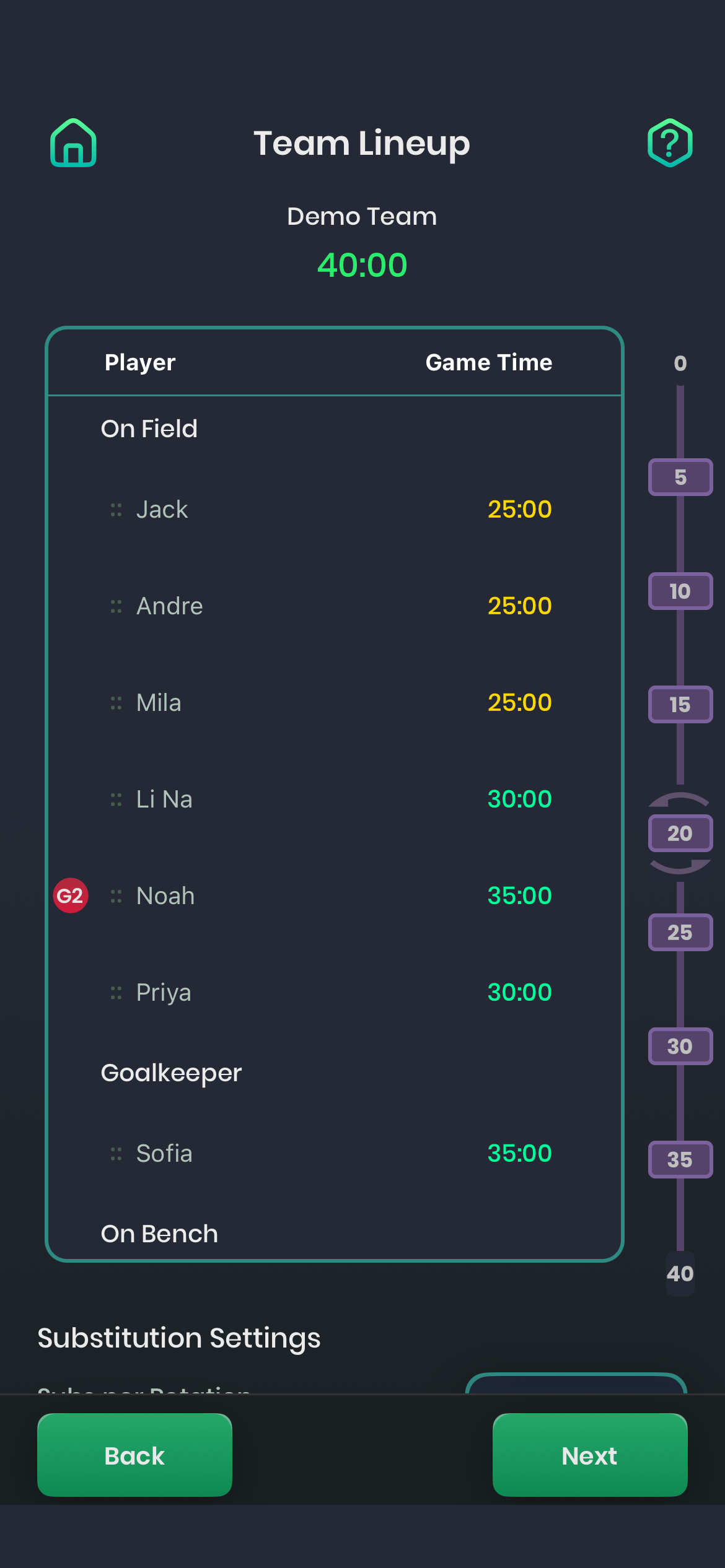
- On the Team Line-Up screen, drag any players who are not playing into Not Playing if needed.
- Check the purple timeline to see:
- When substitutions happen
- When breaks occur
Choose Substitution Settings
- Open Substitution Settings.
- Select:
- Time between rotations
- Number of subs per rotation
- If other fair options exist, SubNow will show them automatically.
- Need something different? Use Contact Us.
Check Game Time Fairness
Each player’s planned game time is colour-coded:
- 🟢 Green – equal to or more than average
- 🟡 Yellow – up to 10% below average
- 🔴 Red – more than 10% below average
This helps you quickly confirm game time is fair.
Adjust Player Order & Goalkeeper
- Drag players to:
- Change substitution order
- Choose who starts on the bench
Second-Half Goalkeeper
- Tap just left of a player’s name.
- A red G2 icon appears.
- Their game time updates automatically.
- Time in goal counts as time on the field.
Continue to Planning
Tap Next:
- Pro subscribers → Positions screen
- Basic subscribers → Substitution Plan
Set Positions (Pro Subscribers)
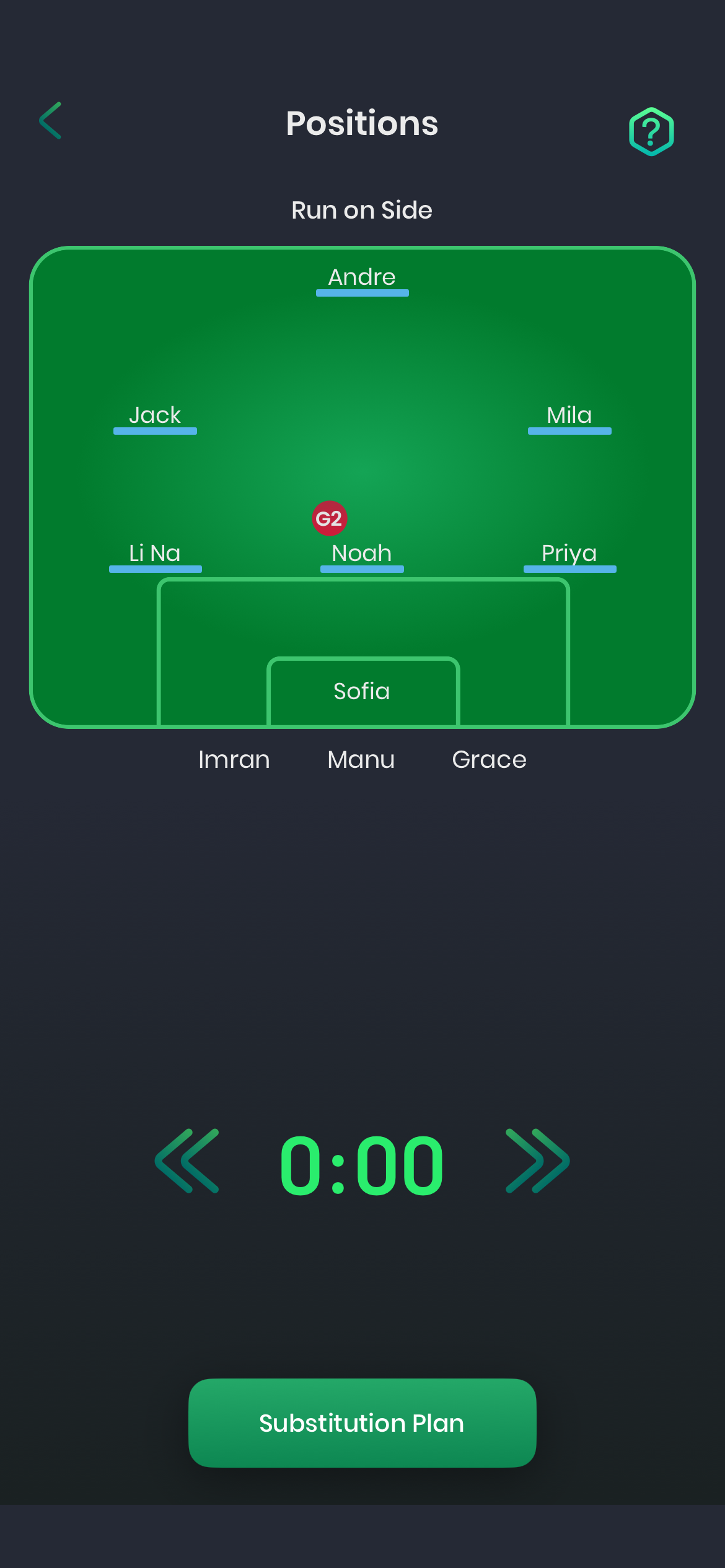
Starting Formation
- Tap a player.
- Tap an empty spot on the field.
Positions can only be placed on the first Positions screen.
Run-On Positions
- Tap one player, then another to swap.
Preview Rotations
- Tap Fast Forward to step through rotations.
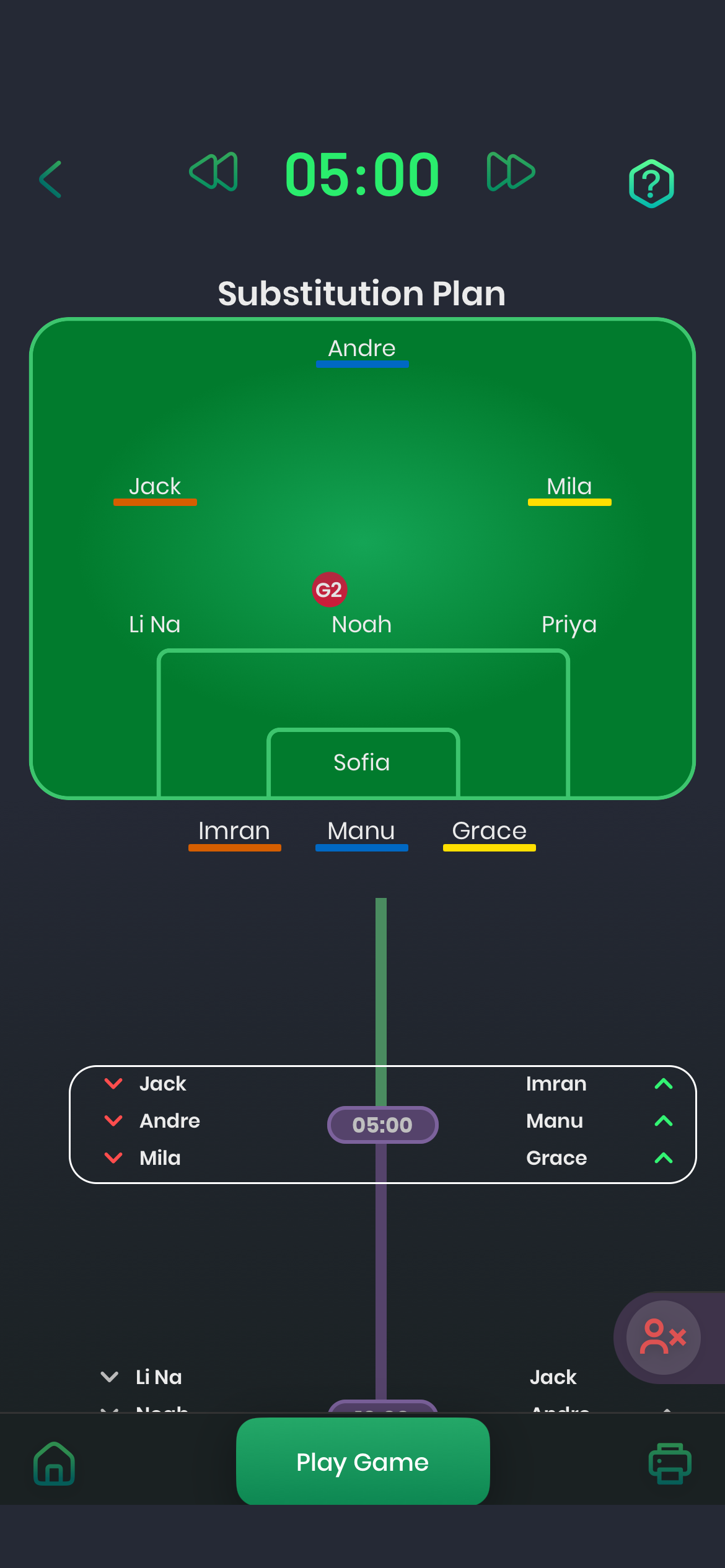
- Players underlined in blue have just come on and can swap positions.
- Adjustments here do not affect planned game time.
Tap Substitution Plan when ready.
Review the Substitution Plan
- Use Fast Forward or tap a rotation time to preview the whole game.
- Matching colours show who substitutes for who.
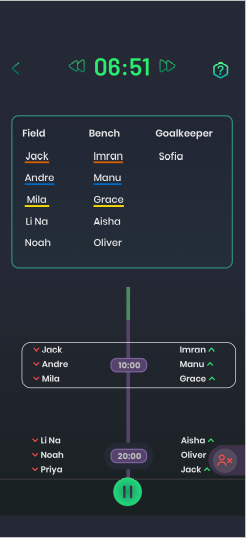
When positions aren’t active:
- Players are shown under Field and Bench.
- The next players coming off are listed at the top.
Print or Share
- You can export the plan as a PDF.
- Useful for:
- Paper copies
- Sharing with assistants or parents
- Keeping weekly records
Start the Game
- Tap Play Game.
- Press the red Play button to start the clock.
- Use Fast Forward if you’re practising.
Alerts & Substitutions
- You’ll get an alert 1 minute before each rotation or break.
- SubNow runs in the background (with permissions enabled).
- The “Sub Now” alert sounds shortly before each substitution:
- Default: 20 seconds
- Adjustable to 30 or 40 seconds in Substitution Settings
Making Substitutions
Planned Substitutions
- Tap the underlined player on the bench.
- Tap the matching coloured player on the field.
- Repeat until no underlined players remain.
- SubNow scrolls to the next rotation automatically.
Unplanned Substitutions
- Long‑press a player on the field.
- Tap the bench player they are replacing.
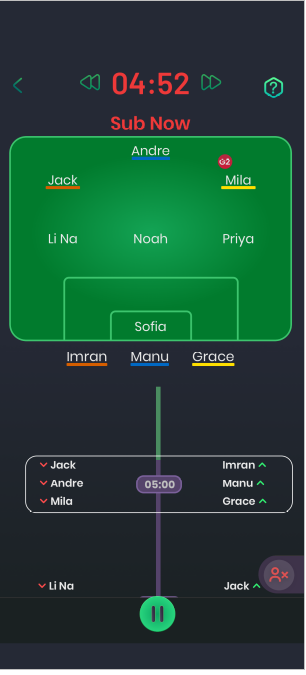
Injuries & Out-of-Game Players
- Make an unplanned substitution to bring the injured player to the bench.
- Long‑press the player.
- Tap the Out of Game icon.
- The plan recalculates automatically.
- Open Out of Game
- Long‑press the player returning
Change Positions During the Game
- Swap positions:
- Long‑press a player
- Tap another player
- Change formations:
- Long‑press a player
- Tap an empty spot on the field
- Changes apply from that point forward.
Breaks, Half-Time & Full-Time
- The clock pauses automatically for breaks.
- Tap Play to restart after each break.
- Planned half‑time goalkeeper changes must be recorded first.
- Players may appear in new positions after half‑time.
- A warning sounds 1 minute before full time.
At full time, you’ll see a congratulations message and an optional rating prompt.
Ending or Restarting Games
- Exit early using the back arrow (progress is not saved).
- When starting a new game, the previous line‑up is used by default — making weekly tweaks easy.
Need More Help?
- Check FAQs
- Use Contact Us
- Email support@subnowapp.com